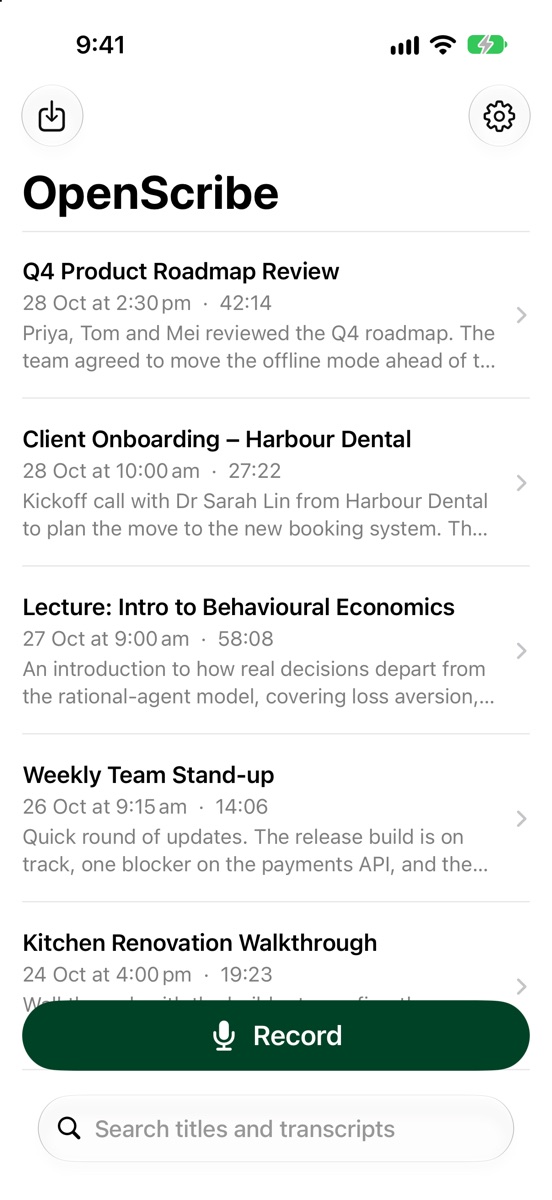
Free on iPhone and iPad · No account needed

Every conversation,
captured.

OpenScribe records your meetings, lectures and calls, then writes the transcript, summary, decisions and action items for you. No extra hardware. Your choice of AI.

Coming soon to the App Store See how it works
How it works

Record. Transcribe. Summarise.

Three steps from a conversation to notes you can send.

1

Record or import

Tap Record and put your phone down. It keeps going with the screen locked. Or import a Voice Memo, Zoom or Teams recording.

2

Transcribe

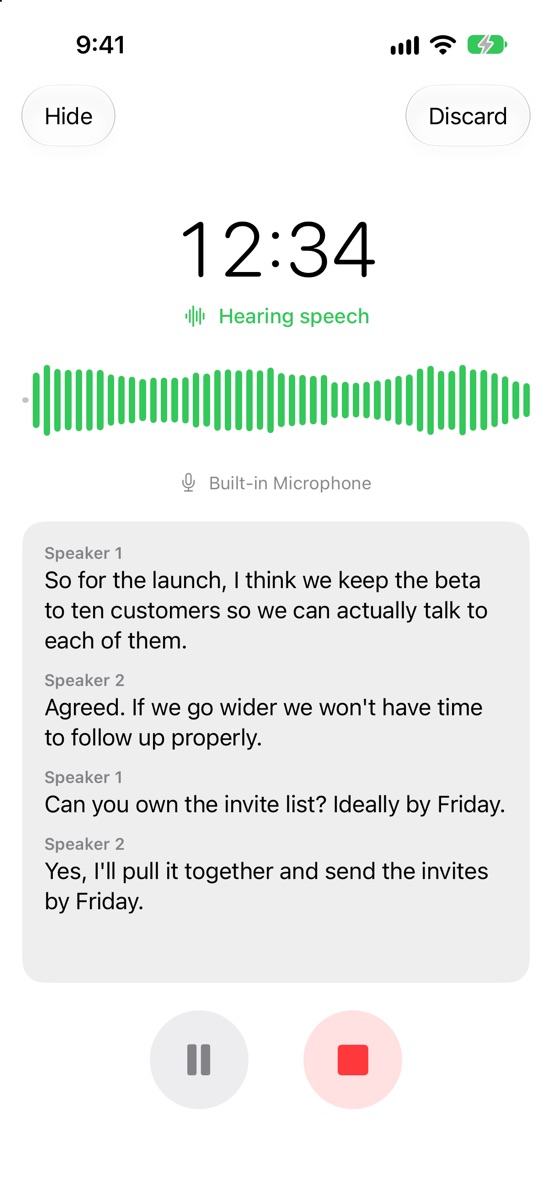
Speech becomes text with timestamps and speaker labels, live as you talk or all at once when you stop.

3

Get your notes

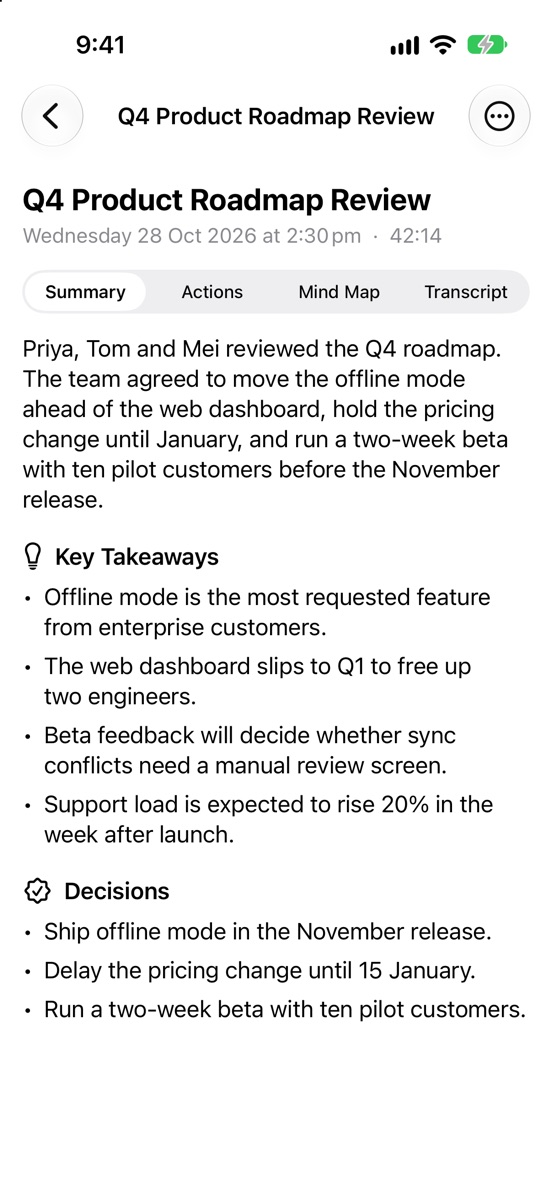
AI writes the summary, key takeaways, decisions, action items and a mind map, ready to share.

Features

Notes that are ready to send

Everything a dedicated AI recorder does, using the iPhone you already carry.

Records in the background

Keeps recording with the screen locked or in another app, through AirPods or Bluetooth headsets, and picks up again after a phone call.

Summaries and decisions

What was discussed, where it landed, the key takeaways and what the group actually agreed.

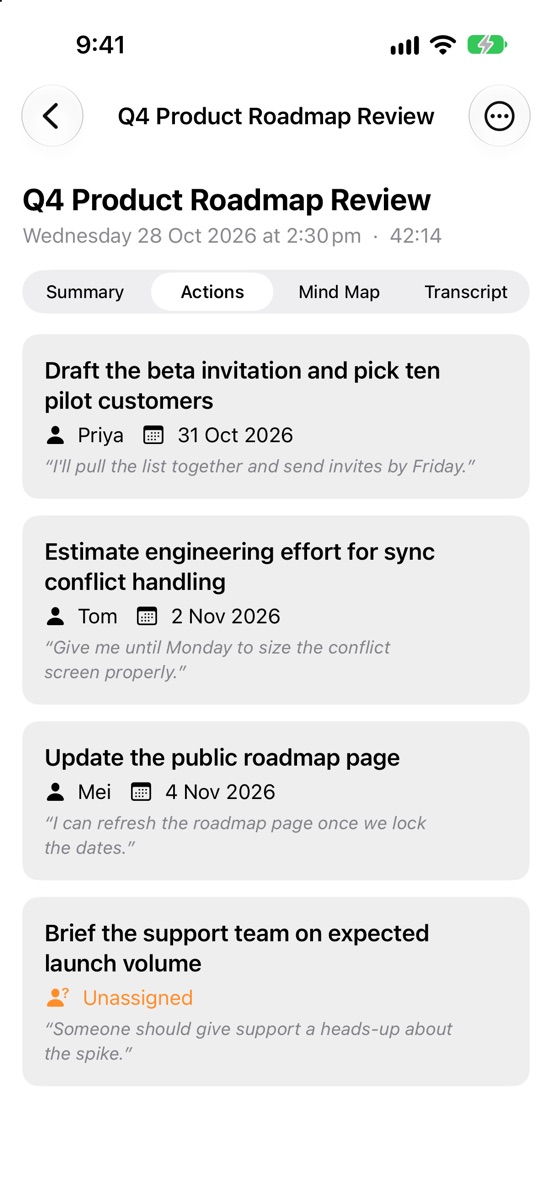
Action items with owners

Who is doing what, by when, with the quote it came from. "By Friday" becomes a real date.

Know who said what

Speaker labels separate each voice. Name a speaker once and the transcript and action items use their name.

Mind maps

Every topic and subtopic of the conversation laid out at a glance.

Import and share

Bring in existing audio or video, and share notes as Markdown to Notes, Mail, Slack or your task manager.

OpenScribe recording a meeting, showing the live level meter and a live transcript with two speakers
Two ways to capture

Live when you want it. Accurate when it counts.

  • Batch mode records the whole session and transcribes when you stop, for the most accurate speaker labels.
  • Live mode transcribes every 15–30 seconds so you can follow along as people talk.
  • Noise and echo cancellation keep speech clear in busy rooms.
Your choice of AI

Use the services you trust, or none at all.

OpenScribe works with your own API keys, so you pay providers directly at their rates and there's no subscription to us. Pick on-device options and nothing leaves your devices.

Transcription

Turns your audio into text

Deepgram Speaker labels
Fast, accurate cloud transcription that separates each voice.
Groq Whisper Cloud
OpenAI's Whisper model, run very quickly and cheaply.
Apple Speech On device
Free and offline, built into iOS.
WhisperKit On device
Whisper running entirely on your iPhone.

Summaries

Writes the notes from the transcript

Anthropic Claude Cloud
Careful, well-structured meeting notes.
OpenAI Cloud
GPT models through your OpenAI account.
Ollama Your own computer
A local model on your Mac or PC, on your own network.
Any OpenAI-compatible service Advanced
LM Studio, OpenRouter, vLLM and similar.
Privacy

Private by design

Your recordings belong to you. OpenScribe has no servers, no accounts and no analytics.

Stays on your device

Recordings, transcripts and notes are stored only on your iPhone or iPad, and excluded from iCloud backups.

You decide what's shared

Nothing goes to an AI service until you allow it, and only to the ones you chose.

No tracking

No account, no advertising, no analytics and no third-party tracking code.

Fully offline option

Use on-device transcription and your own Ollama server and nothing ever leaves your devices.

Privacy Policy

Effective 28 October 2026

This policy explains how the OpenScribe app ("OpenScribe", "the app") handles your information. OpenScribe is made by Luke Bilston, trading as Apps by Luke, in Melbourne, Australia ("we", "us").

The short version

We don't collect any of your information. Your recordings stay on your device. When you ask OpenScribe to transcribe or summarise, it sends audio or text directly from your device to the AI service you chose, using your own account with that service. We never receive or see it.

What stays on your device

  • Audio recordings, including files you import.
  • Transcripts, speaker names, summaries, action items and mind maps.
  • Your settings. API keys are kept in the iOS Keychain.

This data is stored in the app's private storage and excluded from iCloud and device backups. It is never sent to us.

What leaves your device, and when

Only when you record, import or reprocess a recording, and only after you have allowed it on OpenScribe's permission screen, the app sends:

Service you chooseWhat it receivesWhy
Deepgram or GroqThe audio of the recordingTo transcribe it
Anthropic or OpenAIThe transcript, with any speaker names you added, and the recording's date, time zone and lengthTo write the summary, action items and mind map
Another OpenAI-compatible server you enterThe transcript and the same detailsTo write the notes

These requests go directly from your device to the service, under your own account and API key. Each service handles the data under its own privacy policy and terms, linked above, including how long it keeps it. Apple Speech and WhisperKit transcribe entirely on your device, and an Ollama server on your own network stays on your network; neither sends data to a third party.

What we don't do

  • No account or sign-in, and no personal details are asked for.
  • No analytics, crash reporting, advertising or tracking, and no third-party SDKs that do these things.
  • We don't sell, rent or share any information, because we don't have any.

Your choices

  • Withdraw permission for AI services at any time in Settings › Privacy. OpenScribe asks again before sending anything.
  • Switch to on-device transcription and a local summary server to keep everything on your devices.
  • Delete a recording by swiping it in the list. Deleting the app deletes all of its data.
  • To delete data a provider holds, contact that provider or use its account settings.

Recording other people

Recording conversations is regulated in many places, and the rules differ between countries and states. You are responsible for telling people when you record them and for getting any consent the law requires.

Children

OpenScribe isn't directed at children and we don't knowingly collect information from anyone, including children.

Changes to this policy

If this policy changes, we'll update it on this page and change the effective date above.

Contact

Questions about privacy? Email support@openscribe.bilston.net.au.

Support

Help and questions

Answers to the common ones. If yours isn't here, get in touch below.

What do I need to get started?

For the best results, two API keys:

Paste them into Settings in OpenScribe. They're stored in your iPhone's Keychain. To use OpenScribe without any accounts, choose Apple Speech for transcription and an Ollama server you run on your computer for summaries.

Do I need an account?

No. OpenScribe has no accounts or sign-in. You only need accounts with the AI services you choose to use.

How much does it cost?

OpenScribe is free. If you use cloud AI services, they bill your own account for what you use, at their published rates. On-device transcription and your own Ollama server cost nothing.

Which transcription engine should I choose?
  • Deepgram if you want to know who said what. It's the only engine with speaker labels.
  • Groq Whisper for fast, low-cost transcription of one speaker, such as lectures or dictation.
  • Apple Speech or WhisperKit to keep audio on your device. WhisperKit downloads a speech model (about 150 MB) the first time you use it.
Why is everyone labelled as the same speaker?

Only Deepgram separates speakers. Switch the engine to Deepgram in Settings, then open the recording and choose Re-transcribe from the ••• menu. Tap a speaker's label to give them a name.

What's the difference between Batch and Live?

Batch transcribes the whole recording when you stop, which gives the most consistent speaker labels. Live shows text every 15–30 seconds while you record. With Deepgram, Live re-transcribes the full recording when you stop so speaker labels stay consistent; you can turn that off in Settings.

Does it keep recording when my screen locks?

Yes. Start recording in the app, then lock your phone or switch apps and it keeps going. A phone call or Siri pauses recording; it resumes on its own when it can, or you can tap Resume.

How do I import an existing recording?

Tap the Import button at the top left and choose an audio or video file from Files. In Files or Mail you can also share an audio file and choose Open in OpenScribe. Most formats work, including m4a, mp3, wav, mp4 and mov.

A recording says "Needs attention". What now?

Open it to see the reason. Usually an API key is missing or wrong, or the connection dropped. Fix it in Settings and tap Try Again. Your audio is never lost; it stays on your device until you delete it.

Is it legal to record conversations?

It depends on where you are. Some places allow recording a conversation you're part of; others require everyone's consent. Always tell people you're recording, and check the rules where you live.

How do I delete my data?

Swipe left on a recording to delete it and its audio, transcript and notes. Deleting the app removes everything. To withdraw permission for AI services, go to Settings › Privacy › Withdraw Permission.

Still need help?

Send a description of the problem, your iPhone or iPad model and iOS version, and I'll get back to you.

Email support
OpenScribe app icon

Never take meeting notes again.

Free for iPhone and iPad. No account. Your recordings, your device.

Coming soon to the App Store